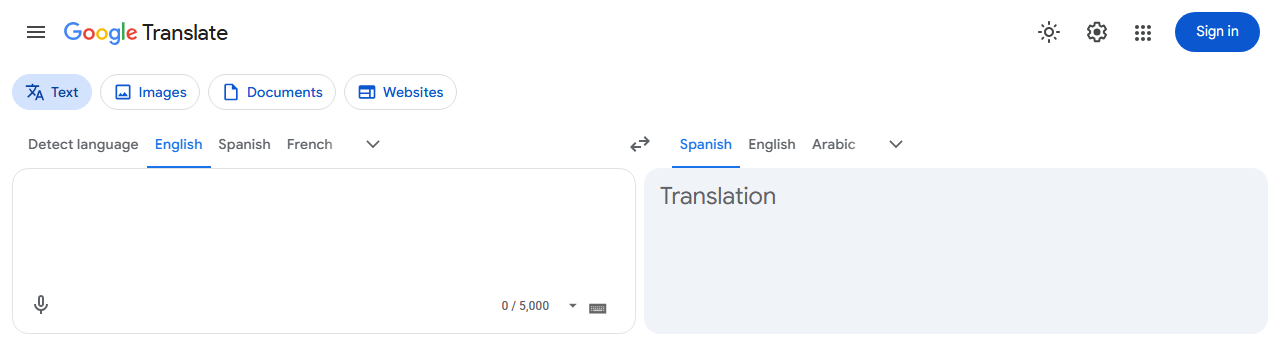
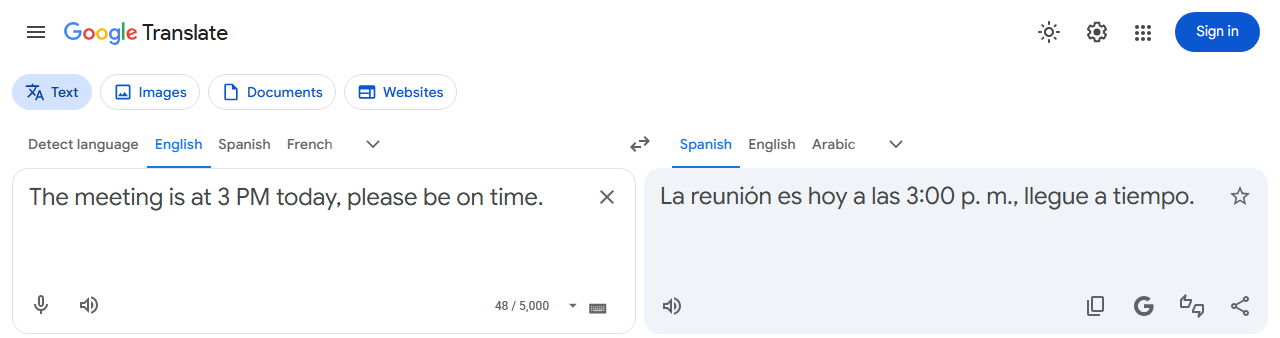
Demo: double-tap Left Ctrl to start recording, then press Ctrl+1 to stop and copy
Double-tap Left Ctrl to start recording. When you're done, press Ctrl+1 to stop, select all and copy the source text. No hunting for the mic button, no reaching for the mouse.
Demo: double-tap Left Ctrl to start recording, then press Ctrl+1 to stop and copy
No mouse, no searching for the mic button — double-tap again to turn it off. Holding Ctrl for other shortcuts (like Ctrl+C) won't trigger it.
Stops recording, selects the source text and copies it to the clipboard in one keystroke — ready to paste anywhere.
Use any key combination, or a double-tap of any Ctrl / Alt / Shift / Win key. Reset to defaults in one click.
Works on Google Translate sites worldwide. A status badge in the top-right corner shows when you're recording.
One-click install from the Chrome Web Store. No sign-up, no login.
Allow microphone access the first time. A blue mic badge in the top-right corner means it's active.
When you're done, press Ctrl+1 — the source text is already copied and ready to paste.
$0
No account, no credits, no subscription and no usage limits.
We don't record audio or access your microphone. Google Translate itself handles recording and recognition — the extension just presses its mic button for you.
We don't collect or send any data. Your shortcut and language settings stay in your own Chrome.
It only runs on Google Translate and never reads content from other sites.
After installing, open Google Translate and try double-tapping Left Ctrl.